PC Hardware Setup

Parts and Materials Required

Refer to the table below to determine what configuration is required for your customer

System System Software Dell PC Image Version / Windows OS
Panther v5.3 XE
v3.0.11 / Windows Vista

Panther

v5.3

XE2
v4.7.0 / Windows Vista
OR
v5.7.1 / Windows 7

Panther

Panther Fusion


v6.2.5.1

XE2

v5.8.3 / Windows 7

Panther

v7.1.5.4

XE2 with 16GB RAM
OR
XE3

v6.0.13 / Windows 10

Panther Fusion

Panther PLUS

Panther LINK
v7.1.5.4 XE3 v6.0.13 / Windows 10

Panther

Panther Fusion

Panther PLUS

Panther LINK

v7.2

XE3

v6.0.17 / Windows 10

Time Required

  • 10 minutes

Procedure

ClosedDell OptiPlex XE

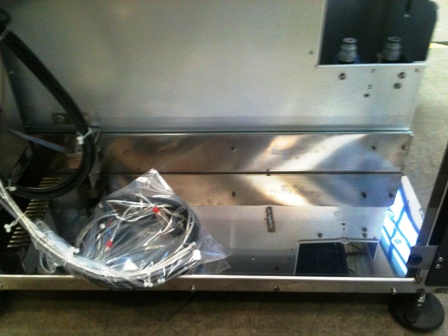
  1. ClosedLocate the Panther System PC and place it into the PC compartment of the Panther system
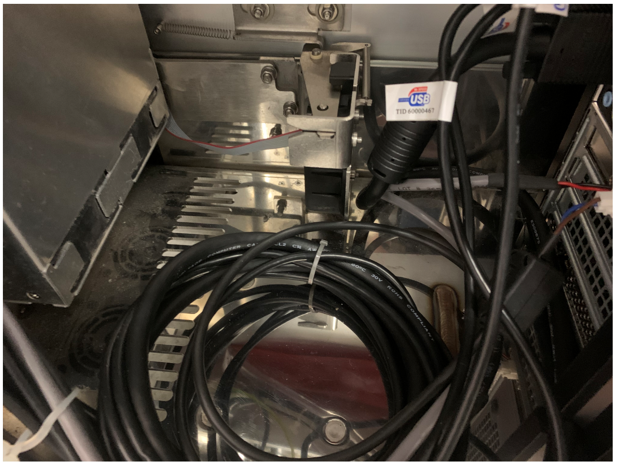
  2. Remove plastic and zip ties from USB cables.
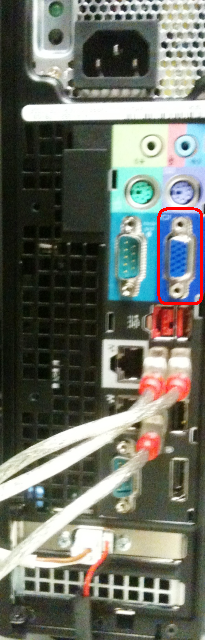
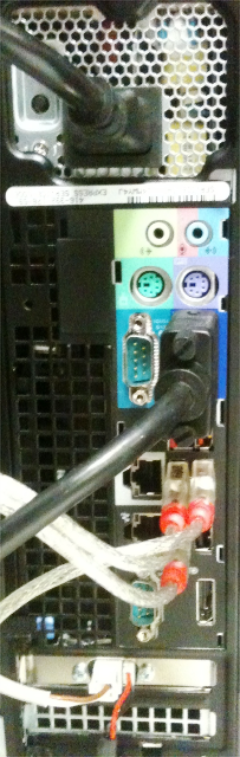
  3. ClosedConnect the monitor cables to the back of the PC, as indicated in the following photo.
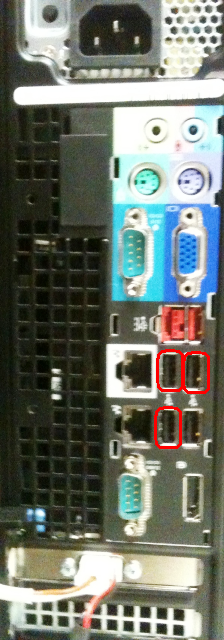
  4. ClosedConnect the three USB cables into the USB ports on the back of the PC, as indicated in the following photo.
  5. ClosedConnect the Monitor cable into the monitor port on the back of the PC, as indicated in the following photo.
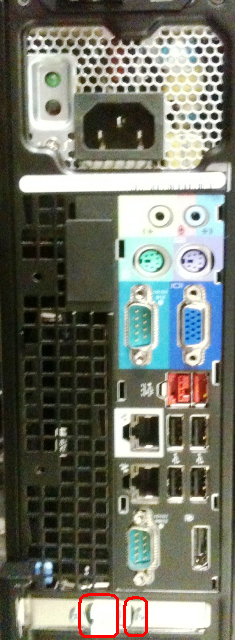
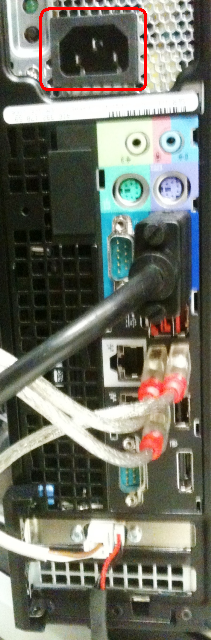
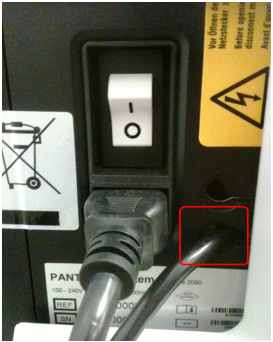
  6. ClosedPlug the Panther System PC power cable into the power connector, as indicated in the following photo.
  7. ClosedThe following photo shows the complete setup of the Panther System PC (OptiPlex XE).
  8. ClosedVerify any computer cables will not interfere with the Drawer lock.

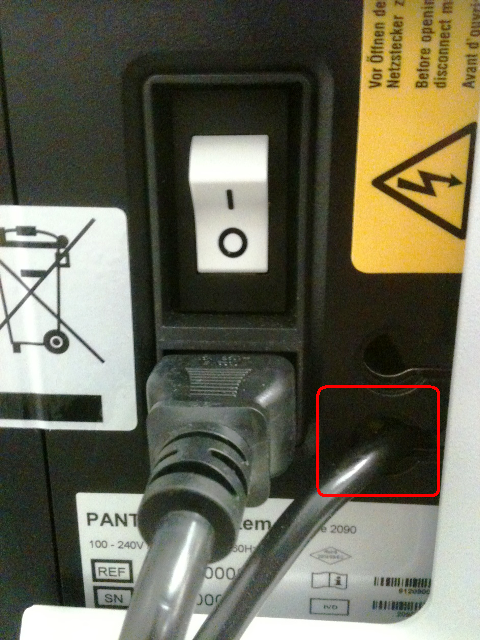
  9. ClosedPlace the Panther System PC power cable in between the designated partition and close the Left Panel Door.

ClosedDell OptiPlex XE2

  1. Locate the Panther System PC and place it into the PC compartment of the Panther system.
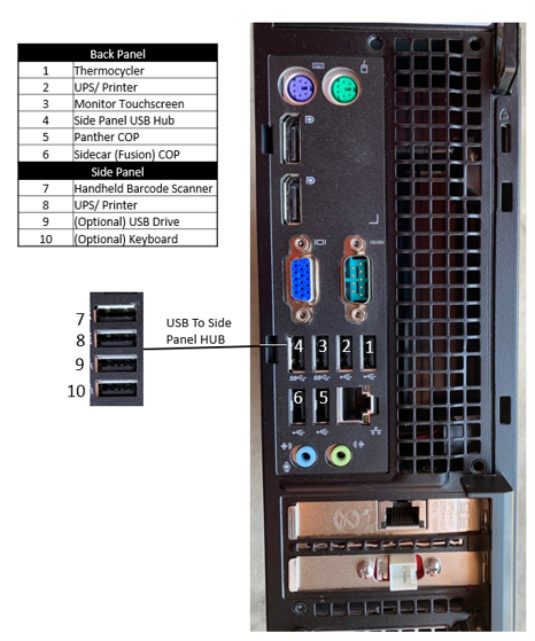
  2. ClosedConnect the USB devices to the XE2 PC as shown below.
    • Do NOT connect anything to the ports on the front of the PC.
    • Only the XE2's rear USB ports and the USB HUB on the side of the instrument should be used.
    • Devices MUST be connected in the ports as show below.
  3. ClosedVerify any computer cables will not interfere with the Drawer lock.

  4. ClosedPlace the Panther System P power cable in between the designated partition and close the Left Panel Door.
  5. If installing an XE2 with 16GB of RAM [CMP-01711], complete the BIOS Settings before Imaging (SATA RAID On) procedure.
  6. Continue to Imaging the Dell Optiplex XE2.
  7. NOTEIf this is an installation, continue to Software Installation.

Dell OptiPlex XE3